

As a library owner, you can claim your library on Context7 to unlock advanced configuration options through a web-based admin panel. This gives you full control over how your documentation is parsed and presented to developers.
Why Claim Your Library?#
Claiming ownership provides several benefits:
- Web-based configuration: Edit settings through a user-friendly interface instead of committing changes
- Teamspace management: All project members can manage the library configuration
- Version management: Add and manage multiple versions of your library documentation
- Usage analytics: View metrics on how developers use your library's documentation
- Higher refresh limits: Get higher rate limits for refresh operations to better manage your content
- Apply for verification: Only owners can apply for the verified badge. Learn more about verification
Claiming Process#
Navigate to the Admin Page
You can access the admin page in two ways:
From the Dashboard: Find your library in the dashboard and click the "Manage" button to open the admin configuration page.
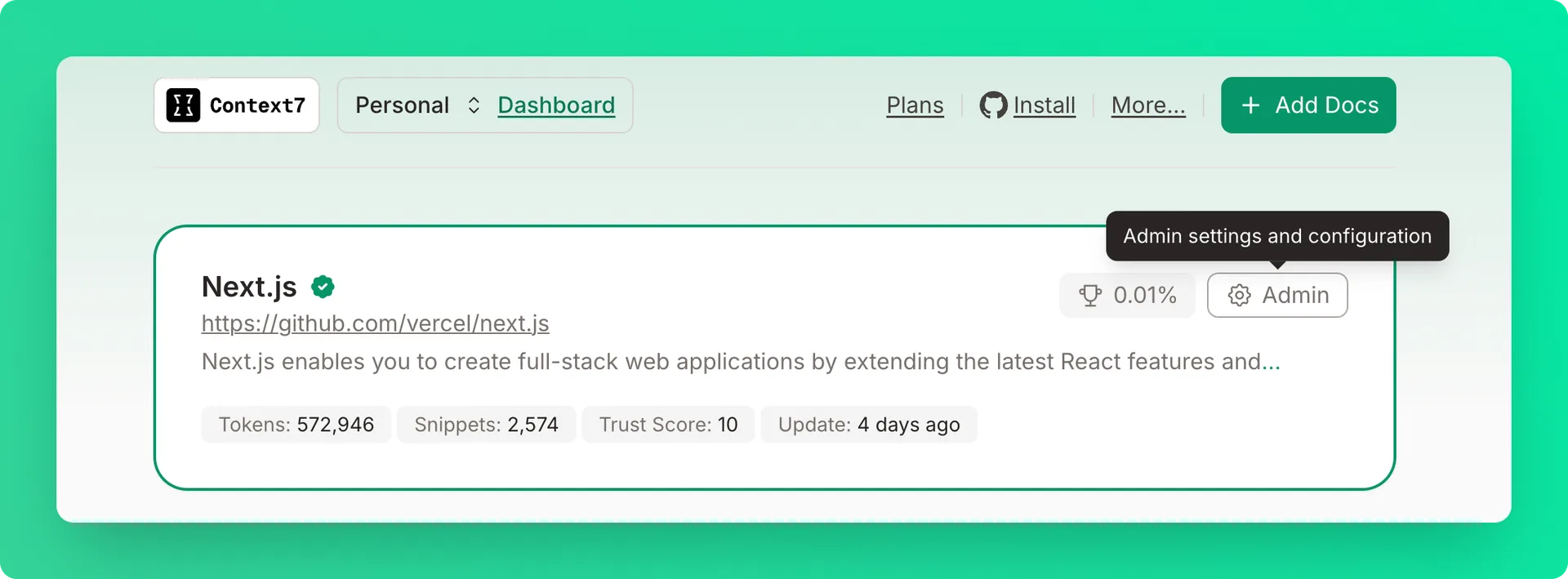
Via Direct URL: Go directly to your library's admin page at:
For example: https://context7.com/vercel/next.js/admin
Open the Claim Modal
If you haven't claimed the library yet, you'll see a "Claim Library" button in the header. Click it to open the claiming modal.
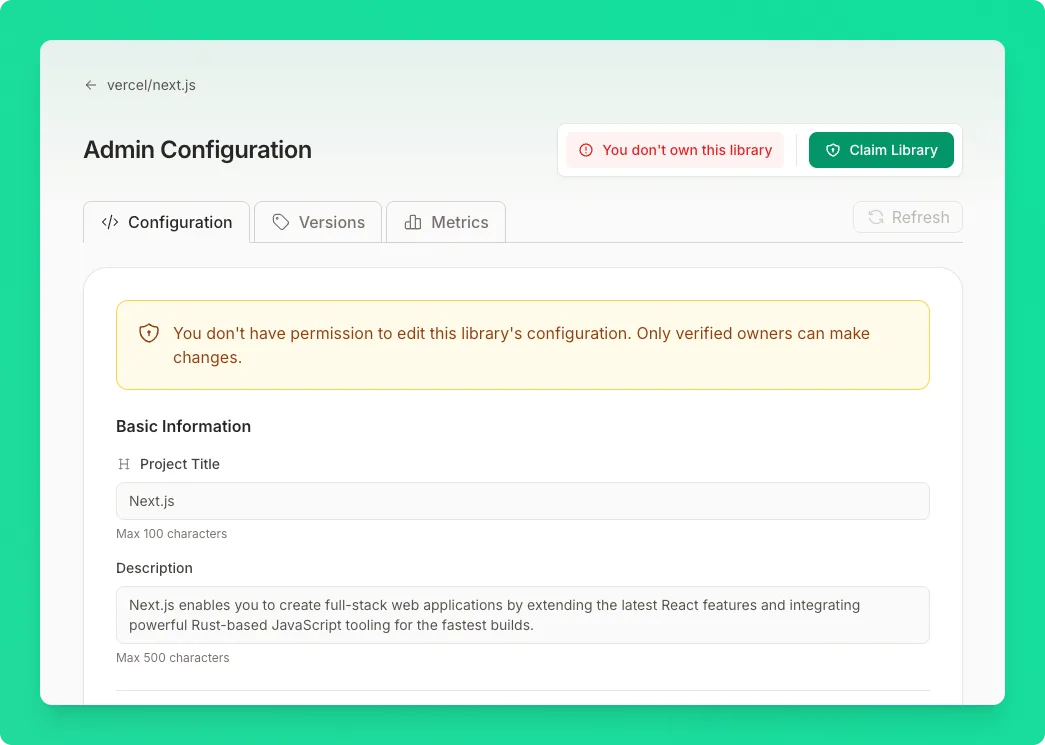
Get Your Public Key
In the claiming modal, you'll see a generated context7.json configuration with your unique public key:
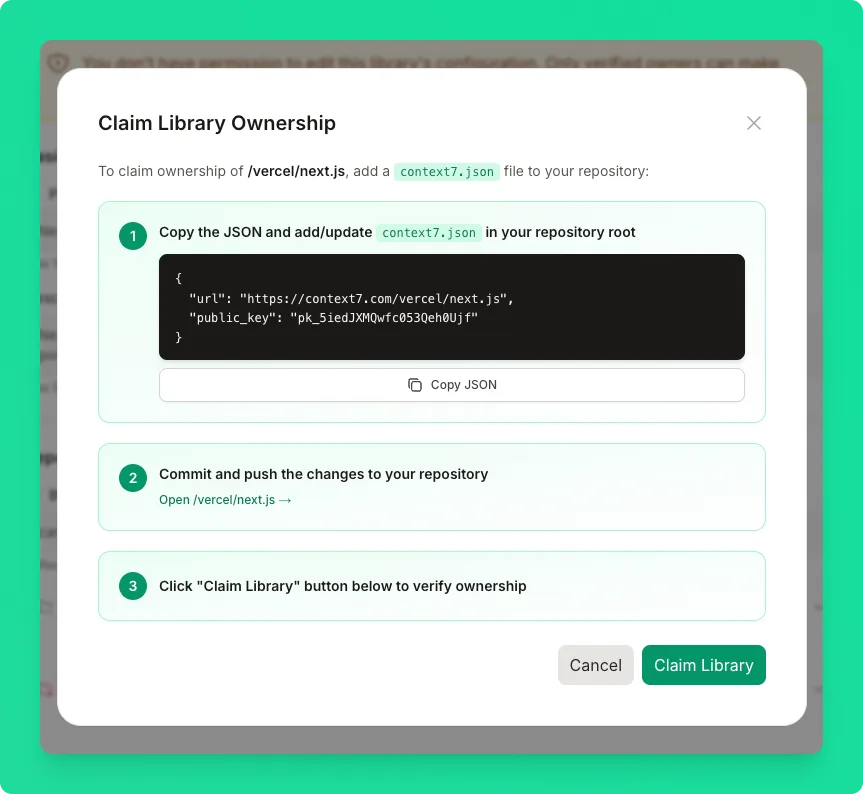
The modal provides a JSON snippet like this:
Click "Copy" to copy the configuration to your clipboard.
Host the context7.json File
Create a context7.json file in the root of your repository with the copied content:
The url must exactly match your library's URL on Context7, and the public_key must match the key shown in the modal.
Commit and push the file to your repository's default branch.
Host the context7.json file anywhere under your library's base URL so it is publicly reachable. For example:
The file must contain the copied content:
The url must exactly match your library's URL on Context7, and the public_key must match the key shown in the modal.
Once the file is live, paste the full URL to your hosted context7.json into the input field shown in the modal.
Verify Ownership
Click "Claim Library". Context7 will fetch your context7.json, verify the URL and public key, and grant you access to the admin panel.
Admin Panel Overview#
After claiming your library, the admin page shows a full configuration editor with five main tabs:
- Configuration: Edit all library settings
- Chat: Embed an AI chat assistant on your documentation site
- Benchmark: Evaluation of the quality of your library's documentation
- Metrics: View usage statistics
- Versions: Manage different versions and tags of your library
Configuration Fields#
Basic Information#
These fields are available for all library types.
| Field | Description | Limits |
|---|---|---|
| Project Title | Display name for your library in Context7. Used when the LLM cannot generate a name with high confidence. | Max 100 characters |
| Description | Brief description of your library's purpose. | Max 500 characters |
Source Settings#
| Field | Description | Limits |
|---|---|---|
| Branch | Git branch to parse. Leave empty for default branch. | Max 100 characters |
| Folders to Include | Specific folder paths to include when parsing. Leave empty to scan the entire repository. | Max 50 folders, 255 chars each |
| Folders to Exclude | Folder paths or patterns to exclude from parsing. Supports glob patterns. | Max 50 patterns, 255 chars each |
| Files to Exclude | Specific file names to exclude (filename only, not full path). | Max 100 files, 255 chars each |
Exclusion Pattern Examples#
The exclusion fields support various pattern types:
excludeFiles only accepts filenames, not paths. Use CHANGELOG.md instead of
docs/CHANGELOG.md.
| Field | Description | Limits |
|---|---|---|
| Base URL | The root URL to crawl for documentation. | Max 100 characters |
| Display URL | Optional URL shown to users instead of the base URL. | Max 500 characters |
| Keep Hash (URL Fragments) | Whether to treat URLs with different hash fragments as distinct pages. Disabled by default. | Boolean |
| Keep Query Parameters | Whether to treat URLs with different query strings as distinct pages. Enabled by default. | Boolean |
| Exclude URLs | URL patterns to exclude from crawling. Supports wildcards. | Max 100 patterns |
AI Instructions#
| Field | Description | Limits |
|---|---|---|
| Custom Rules | Best practices and guidelines for AI coding assistants when using your library. | Max 50 rules, 255 chars each |
Example rules:
- "Always use TypeScript for better type safety"
- "Import components from the main package, not internal paths"
- "Use environment variables for API keys, never hardcode them"
Advanced Settings#
Available for Git repositories and websites.
| Field | Description | Limits |
|---|---|---|
| Skip Automatic Version Detection | By default, outdated library versions are automatically detected and excluded from indexing. Enable to include all versions regardless of age. | Boolean |
| Redirect URL | Redirect users to a different library. Leave empty to disable. | Max 500 characters |
| Disallow Indexing | Opt-out from Context7. When enabled, documentation content is removed and the library becomes inaccessible. | Boolean |
Managing Versions#
The Versions tab lets you configure previous versions of your library that should be available in Context7.
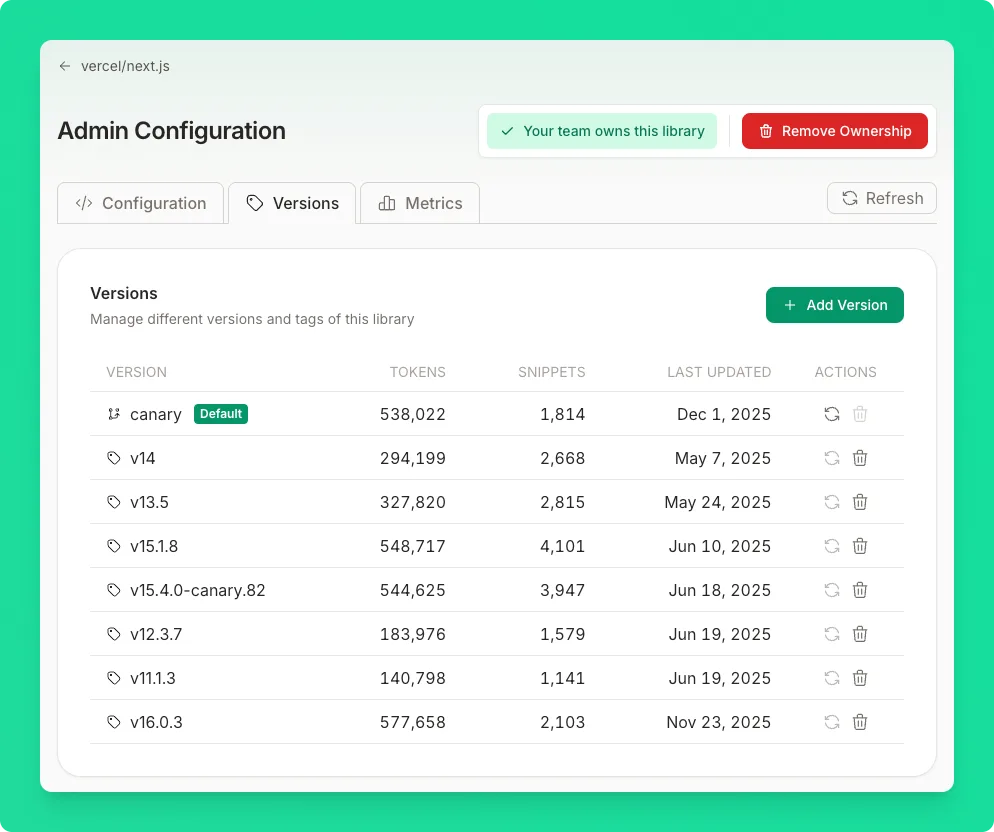
You can add versions using either:
- Git tags: Reference a specific release tag (e.g.,
v1.2.0) - Git branches: Reference a branch for version-specific documentation (e.g.,
release-1.x)
| Limit | Value |
|---|---|
| Maximum versions | 20 |
| Tag/branch name | Max 50 characters |
Library Metrics#
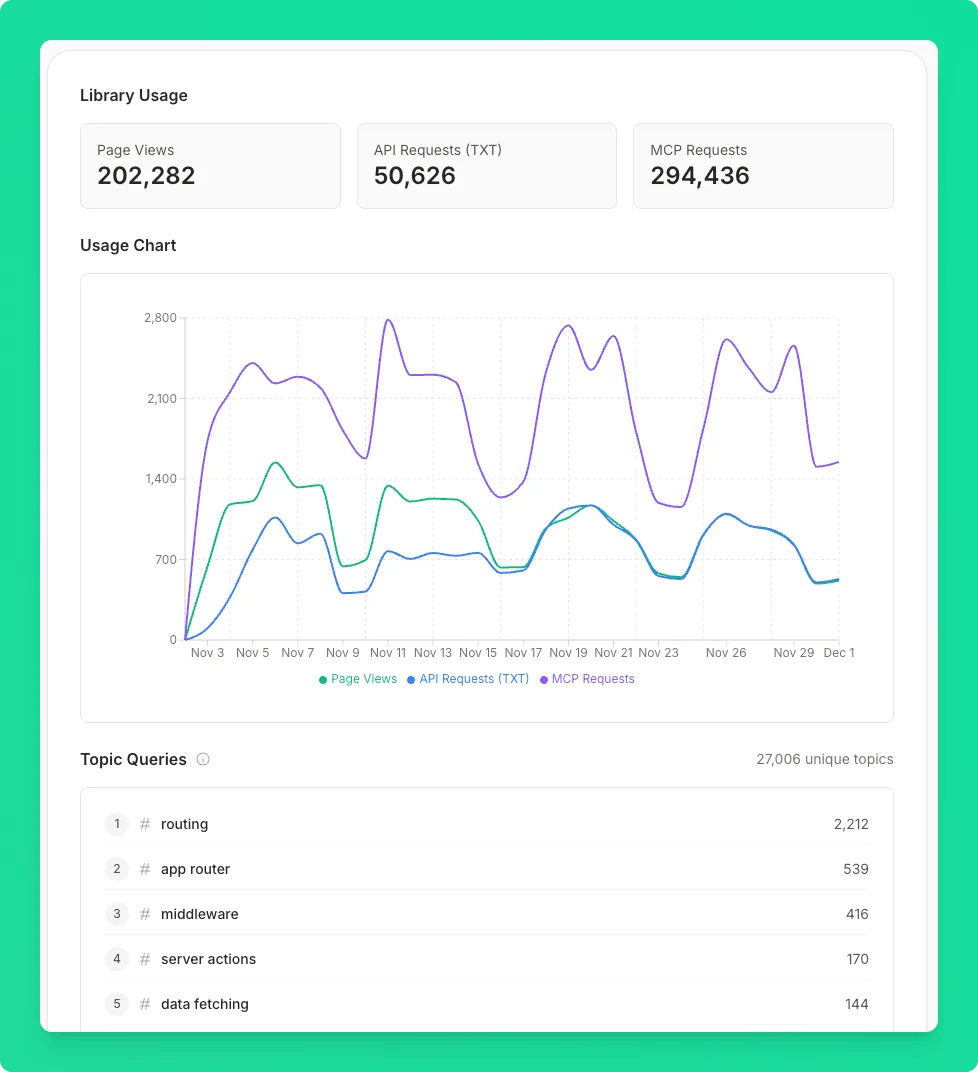
The Metrics tab provides insights into how developers are using your library through Context7.
Usage Statistics#
At the top of the metrics page, you'll see key usage numbers:
| Metric | Description |
|---|---|
| Page Views | Number of times your library page was viewed on Context7 |
| API Requests (TXT) | Documentation requests via the REST API |
| MCP Requests | Documentation requests via the MCP server (from AI coding assistants) |
The metrics page also includes a usage chart showing trends over time, topic queries showing what developers ask about, and country distribution of requests.
Removing Ownership#
Go to the Admin Page
Navigate to your library's admin page at https://context7.com/{owner}/{repo}/admin.
Open the Ownership Menu
Remove Ownership
Removing ownership keeps the admin configuration intact. Another user can claim the library and inherit the existing settings.
Troubleshooting#
"context7.json not found"#
Ensure the file is:
- Named exactly
context7.json(lowercase) - Located in the repository root, not a subdirectory
- Committed and pushed to the default branch
"URL mismatch"#
The url field in your context7.json must exactly match:
Check for typos, case sensitivity, and trailing slashes.
"Public key mismatch"#
The public_key in your file must match the key shown in the claiming modal. Copy the entire key including the pk_ prefix.
Changes not appearing#
After saving configuration changes, you may need to:
- Manually trigger a refresh from the library page
- Clear any cached documentation on your end